
Test Speakers Online
Free, instant, and private: generate test tones in your browser to check headphones and speakers — no signup or downloads.
Quick speaker test
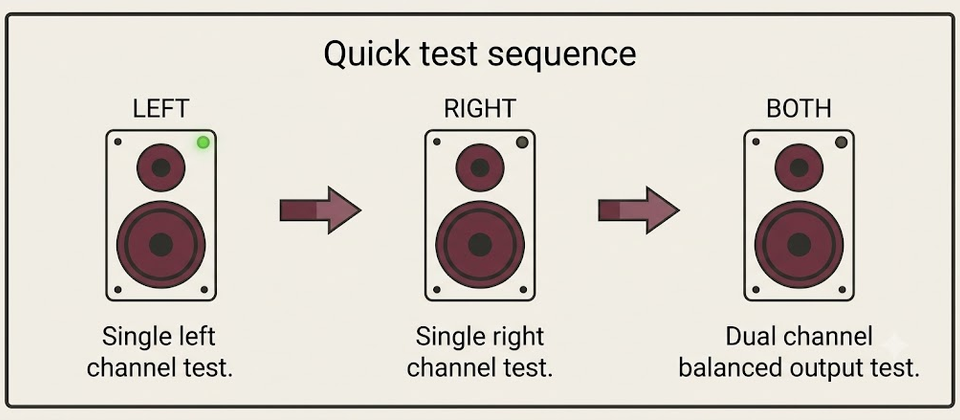
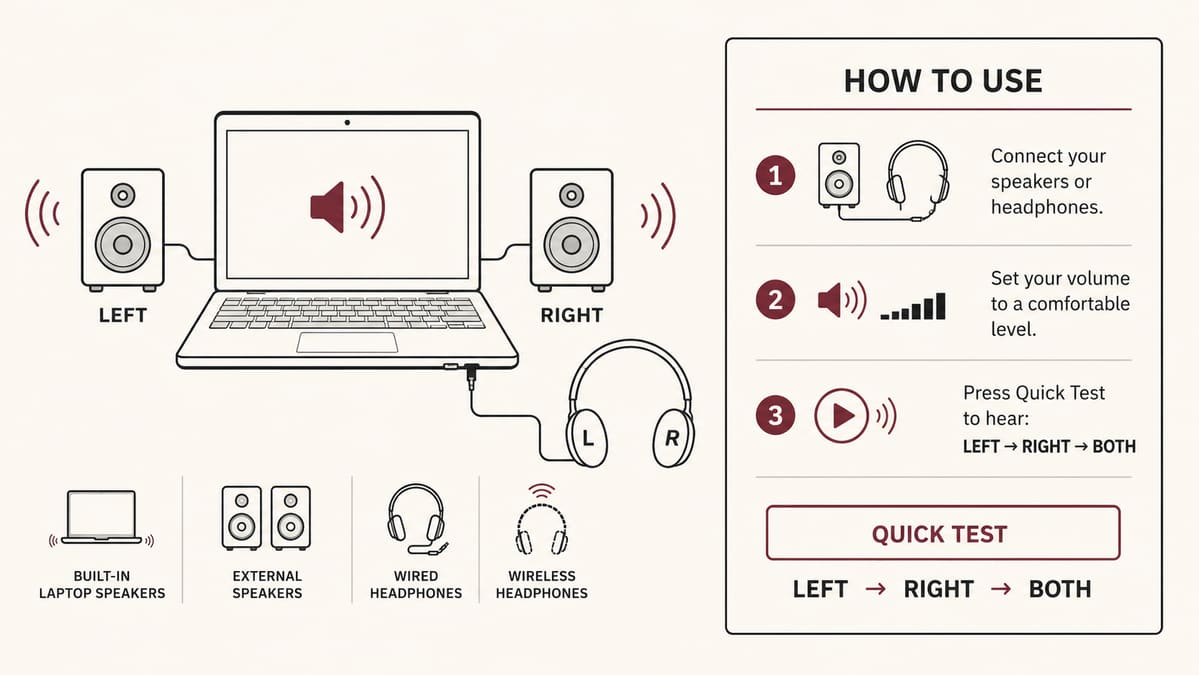
Turn your device volume down, then press Play. You will hear left → right → both in sequence.
How to test your speakers
- Lower your device volume, then set the on-page tool volume near the default (about 25%).
- Press Play and listen for Left → Right → Both.
- If anything is missing, open More tests for a left/right check or the troubleshooting guide.
The same tones work with built-in laptop speakers, USB or 3.5 mm headphones, Bluetooth sets, and external speakers — as long as your OS is sending audio to that device.
When to use which test
- Quick yes/no — is anything playing? Use the homepage quick test.
- One side silent, swapped, or unbalanced → Left / right test.
- Check mid/high tones or hear rattles in a sweep → Frequency generator.
- Weak low end or subwoofer check → Bass test.
- No sound, Bluetooth drops, or app-only issues → Troubleshooting guide.
Common troubleshooting checks
| Symptom | Likely cause | Next step |
|---|---|---|
| No sound | Muted tab, wrong output, Bluetooth drop | No-sound checklist |
| One side only | Balance/mono setting or bad cable | Left/right test |
| Weak bass | Small drivers, crossover, room null | Bass test |
| Harsh distortion | Clipping or rattling panel | Frequency sweep |
Speakers not working: check sound in your browser
Use the quick test above to see whether this device can play audio at all. Tones are generated in your browser — no download, no microphone, no upload. If you hear Left → Right → Both, output is reaching your speakers or headphones. If you hear nothing, work through the checks below before assuming hardware failure.
Why start with an online speaker test
A browser test separates “no sound anywhere” from “only one app is broken.”
- Audio stays on your device; nothing is recorded or uploaded.
- You can compare the same tones on built-in speakers, USB/3.5 mm headphones, Bluetooth, and external monitors.
- If this page plays but Zoom, Teams, or Discord does not, the problem is almost always app output settings — not dead speakers.
Start quietly (about 25% on the tool, system volume moderate). Raise level only after you confirm something is playing.
No sound from speakers or headphones
When the quick test is silent, check these in order:
- Tab mute — Many browsers mute individual tabs. Look for a muted speaker icon on the tab and unmute.
- System and app volume — Confirm OS volume is up and not muted; check per-app volume mixers on Windows.
- Correct output device — Sound may be routing to a disconnected Bluetooth headset, HDMI TV, or docking station. Pick the device you are listening to in OS sound settings, then press Play again.
- Bluetooth — Re-pair or switch to wired headphones if wireless drops or stays connected to another computer/phone.
- Cables and power — Reseat 3.5 mm / USB plugs; confirm powered speakers or a soundbar have power and input selected.
Still silent? Follow the full no-sound checklist.
Windows, macOS, and phone checks
Windows
- Right-click the speaker icon → Open Sound settings → choose the output you are using.
- Open Device Manager → Sound, video and game controllers — look for warning icons and update or re-enable the device.
- Run Troubleshoot → Additional troubleshooters → Playing Audio.
macOS
- System Settings → Sound → Output — select the right device and raise output volume.
- Check Audio MIDI Setup (Applications → Utilities) if multiple interfaces are listed.
- For stubborn routing issues after docking/undocking, a restart often clears a stuck default device.
iPhone / Android
- Raise media volume (not only ringer).
- Confirm Control Center / media output is not stuck on a nearby speaker or car.
- Turn off Do Not Disturb / Focus modes that can silence media.
- Toggle Bluetooth off once to force playback to the handset speaker, then retest.
Site works, Zoom / Teams / Discord do not
If TestSpeakers.com plays normally but a call app does not:
- Open that app’s speaker / output setting and select the same device that worked here.
- Leave the call and rejoin after changing output — some apps lock the device at join time.
- On Windows, confirm the app is allowed under privacy / microphone settings when the product mixes call audio oddly (mic permission can affect how some apps list devices).
- Update or reinstall the app if the output list is empty or stuck.
More detail: app-only troubleshooting.
When to open the other tests
After the quick test confirms *something* is playing:
- Left / right speaker test — one side silent, swapped channels, or odd balance.
- Frequency generator — mid/high tones, rattles, or obvious dips during a sweep (not a hearing test).
- Bass test — weak low end, subwoofer check, laptop bass limits.
- Troubleshooting guide — ordered checklists for no sound, Bluetooth dropouts, distortion, and weak bass.
What the Left → Right → Both sequence means
- Left — tone on the left channel only. Silence here often means mono mode, balance hard-right, a bad cable, or a dead left driver/earbud.
- Right — tone on the right channel only. Same checks mirrored.
- Both — both channels together; should sound centered and even. Uneven Both with working Left and Right usually means placement, balance, or a weak driver—not a failed browser test.
Laptop speakers sit close together, so channel differences are clearer on headphones. Use the left/right page when you need a longer listen on each side.
What this site can and cannot tell you
Useful for
- Confirming the browser can play to the selected output.
- Spotting one-sided stereo, rough frequency gaps, or missing bass relative to expectations.
- Narrowing “device/settings” vs “one app only.”
Not a substitute for
- Clinical hearing tests or calibrated SPL / frequency response lab gear.
- Diagnosing broken wires inside a sealed cabinet.
- Guaranteeing surround / Atmos channel maps (this is a stereo utility).
Privacy and listening safety
Tones are synthesized locally with the Web Audio API. We do not need microphone access for these tests. Prefer starting low and increasing gradually — especially on headphones — so a sudden full-scale tone does not surprise you or stress small drivers.
See the privacy summary and about pages for limits and data practices.
Next steps
- Run the quick test again after fixing mute / output.
- If one side fails, open the left/right test.
- For silent systems or Bluetooth issues, use troubleshooting.
- For low-end questions, use the bass test; for sweeps, the frequency generator.
Bluetooth speakers and headphones
Wireless audio adds failure modes the quick test still helps isolate.
- Confirm the Bluetooth device is the default output before pressing Play.
- If it shows connected but stays silent, disconnect other phones that may hold an active audio stream.
- Latency and dropouts are usually radio or codec issues — retest wired to separate them from dead drivers.
- After re-pairing, re-select the output in the OS; some systems keep sending audio to the previous device.
For recurring dropouts, use the Bluetooth troubleshooting steps.
External monitors and docks
HDMI and DisplayPort monitors often register as audio devices. If the quick test is silent, open sound settings and look for a display or dock output you are not using. Set headphones or built-in speakers as default, disable unused outputs, then run the test again.
USB-C docks can leave stale devices after sleep. If outputs vanish after undocking, replug the dock or reboot once, then confirm the default device before testing.
Supported devices and privacy
Works in current Chrome, Edge, Firefox, and Safari on desktop and mobile. Output-device pickers appear only when the browser exposes them without microphone permission. Test audio stays on your device.
Last reviewed: 21 July 2026. Read the privacy summary and about page for limitations.
Frequently asked questions
Last reviewed: 21 July 2026
Is this speaker test free?
Yes. TestSpeakers.com is free to use in your browser with no account, download, or upload required.
Does this tool record my microphone?
No. Audio is generated locally on your device. We do not listen through your microphone or upload test sounds.
Why do I hear nothing?
Common causes include a muted browser tab, low system volume, the wrong output device, Bluetooth disconnects, or mono/balance settings. Use the troubleshooting guide for ordered checks.
Can this measure speaker quality in decibels?
No. Browser tools cannot reliably report sound pressure level. Treat results as a practical listening check, not laboratory calibration.
Will left/right tests work on a phone?
Yes for stereo headphones or earbuds. Phone loudspeakers are often effectively mono or poorly separated, so use headphones for channel checks.
Is it safe for headphones?
Start with low device volume and the tool volume near 25%. Loud tones—especially bass and very high frequencies—can be uncomfortable and may stress equipment.
What devices can I test?
Laptop speakers, desktop speakers, headphones, earbuds, soundbars, and most Bluetooth speakers. The tests are practical listening checks, not studio-monitor calibration.
Which browser should I use?
Current Chrome, Edge, Firefox, and Safari on desktop and mobile all work for the core tests. If one browser blocks audio, try another or check tab mute.
When should I use left/right vs frequency vs bass?
Use left/right for one-sided or swapped channels, frequency for mid/high tones and sweeps, and bass for low-frequency or subwoofer checks. Start with the homepage quick test if you only need a yes/no.
What if playback stops or never starts?
Raise volume, unmute the tab, confirm the correct output device, then refresh and try again in another browser if needed.